AI Development

We Built a Free MP3 Splitter With AI. Here's How.

MP3 Track Splitter

Candy Creative Digital • Houston, TX • September 18, 2026
  • AI Development
  • Next.js
  • Audio Processing
  • UI/UX
  • Real-time Streaming
  • Automated Testing
Podcaster listening on headphones

If you've ever ripped a live set, a mixtape or a whole album into one giant MP3, you know the problem. You want it as separate songs with the right titles and cover art, and every option is either a desktop app, an ffmpeg command you'll never remember, or a "free" website that quietly strips the metadata.

So we built one we'd actually use. Upload a long MP3, mark where each song starts, and download a zip of individual tracks with the artist, album, year, genre and artwork already written in. No account, no watermark, no catch. Try the MP3 Track Splitter and split something right now.

But honestly, the tool is only half the story. The other half is how it got built.

Candy Creative is an AI development shop. When we tell a client we can ship a real product with AI agents doing the heavy lifting, they usually want to see it, not just hear it. This splitter is that proof. A developer on our team set the direction and made the calls; AI agents wrote most of the code, the tests and, yes, even the screenshots on this page. That's not a gimmick. It's the same process we now run on client work, and it shows in a few places:

  • It's fast, but it's not sloppy. The audio is drawn as an interactive waveform. Each track is a coloured region you can actually see, the player picks up the colours of your cover art, and if you already have a tracklist from YouTube or Bandcamp you can paste it in as text. Small touches like that are where AI-assisted builds usually fall down. Here they didn't, because someone was still steering.

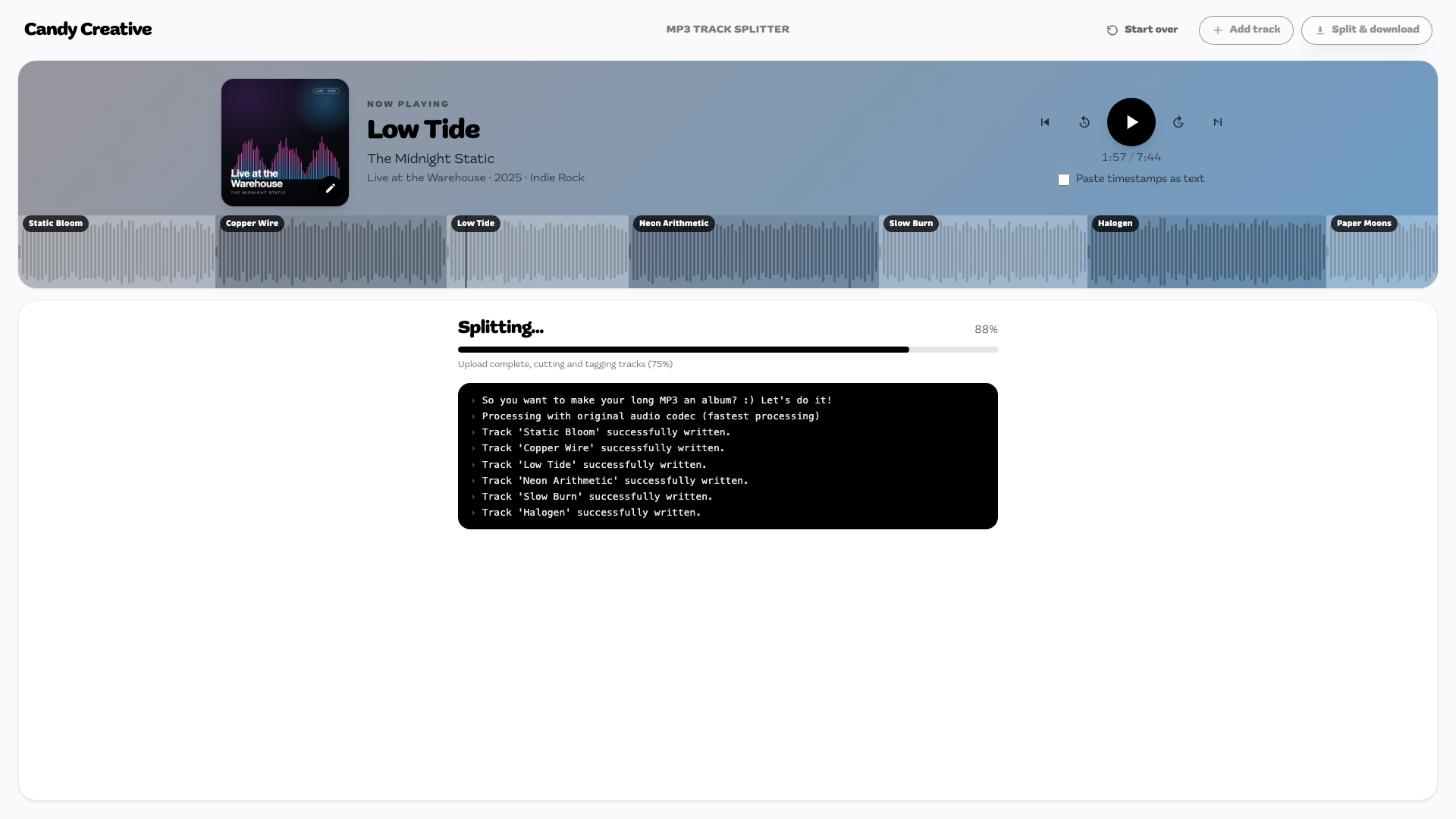
  • It shows its work. Cutting and tagging takes real time on the server, so instead of a spinner the page streams a live log of every cut, every tag and the zip being built. People trust what they can watch.

  • It respects your audio. By default tracks are cut without re-encoding, so nothing is lost. If you need smaller files, re-encoding to MP3, AAC or Opus is one dropdown away.

  • It's tested like a product, not a demo. An automated browser suite runs the real pipeline at desktop, laptop and phone sizes and checks the layout, the streaming log, the tags inside the output files and the download. The agent wrote that suite, and then used it to take the pictures below.

Under the hood it's Next.js with React and Redux, Node route handlers driving ffmpeg, files parked on Amazon S3, and reCAPTCHA so a free tool stays free. Nothing exotic. The interesting part is how much of it a well-directed AI can produce when the person directing it knows what good looks like.

That's what we sell. If you've got a product idea and want to see how far AI development can take it, talk to us. And if you've just got a long MP3, go split it.

Screens & highlights

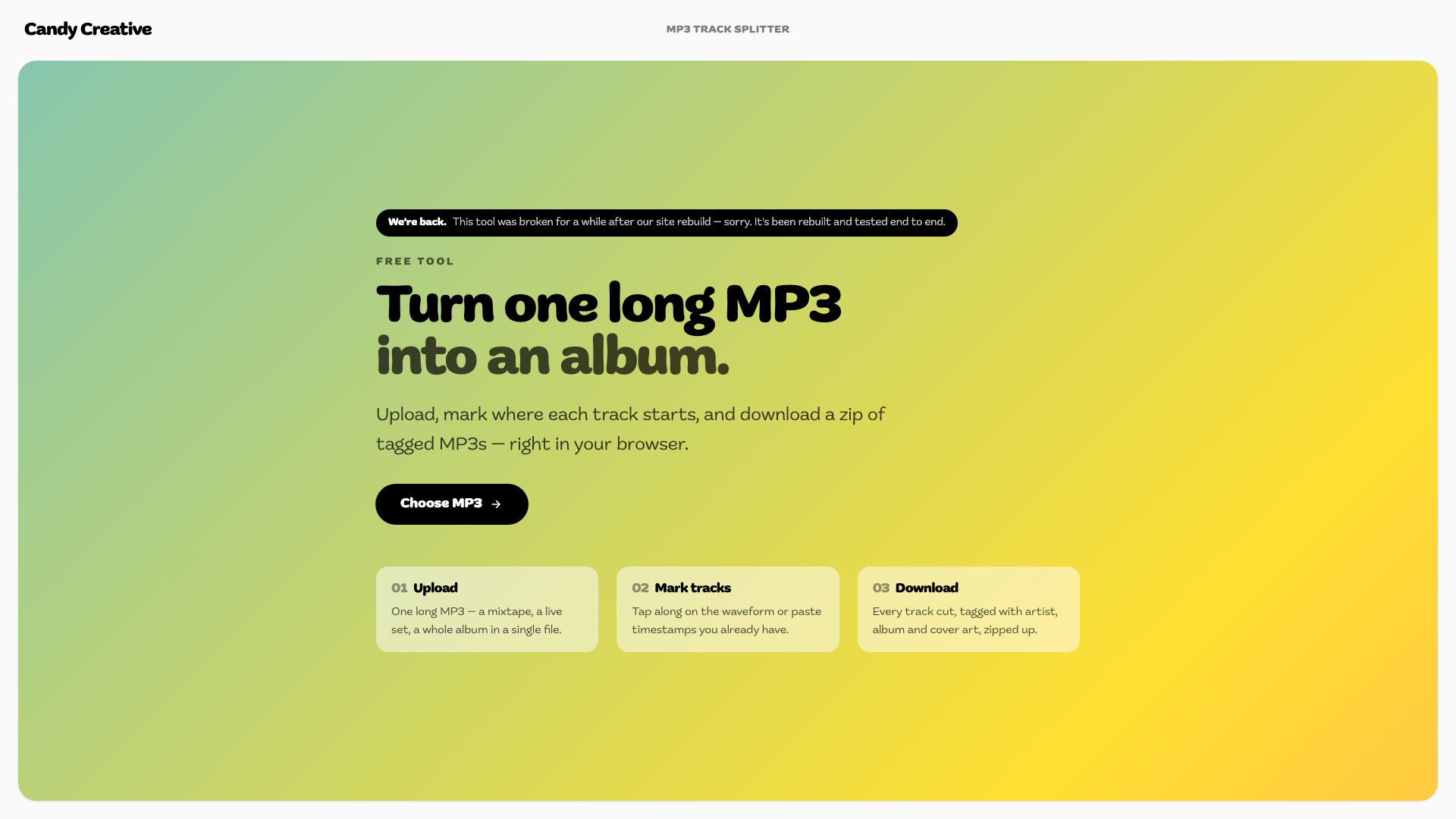
MP3 Track Splitter landing screen

MP3 Track Splitter landing screen

One Sentence, One Button

The landing screen says what the tool does in one line and gives you one thing to click. No sign-up wall, no pricing table. The three steps underneath are there so you know what's coming before you pick a file. Most of the design work on this project was deciding what to leave out.

Part of the Site, Not a Side Project

The splitter lives on our own site as a proper page, not a throwaway subdomain. Its title, description and keywords come from the same CMS as everything else, and if that API ever hiccups the page falls back to static copy so the tool itself keeps working. Boring, and exactly what you want.

Album info drawer with cover art and codec

Album info drawer with cover art and codec

Ask for the Tags First

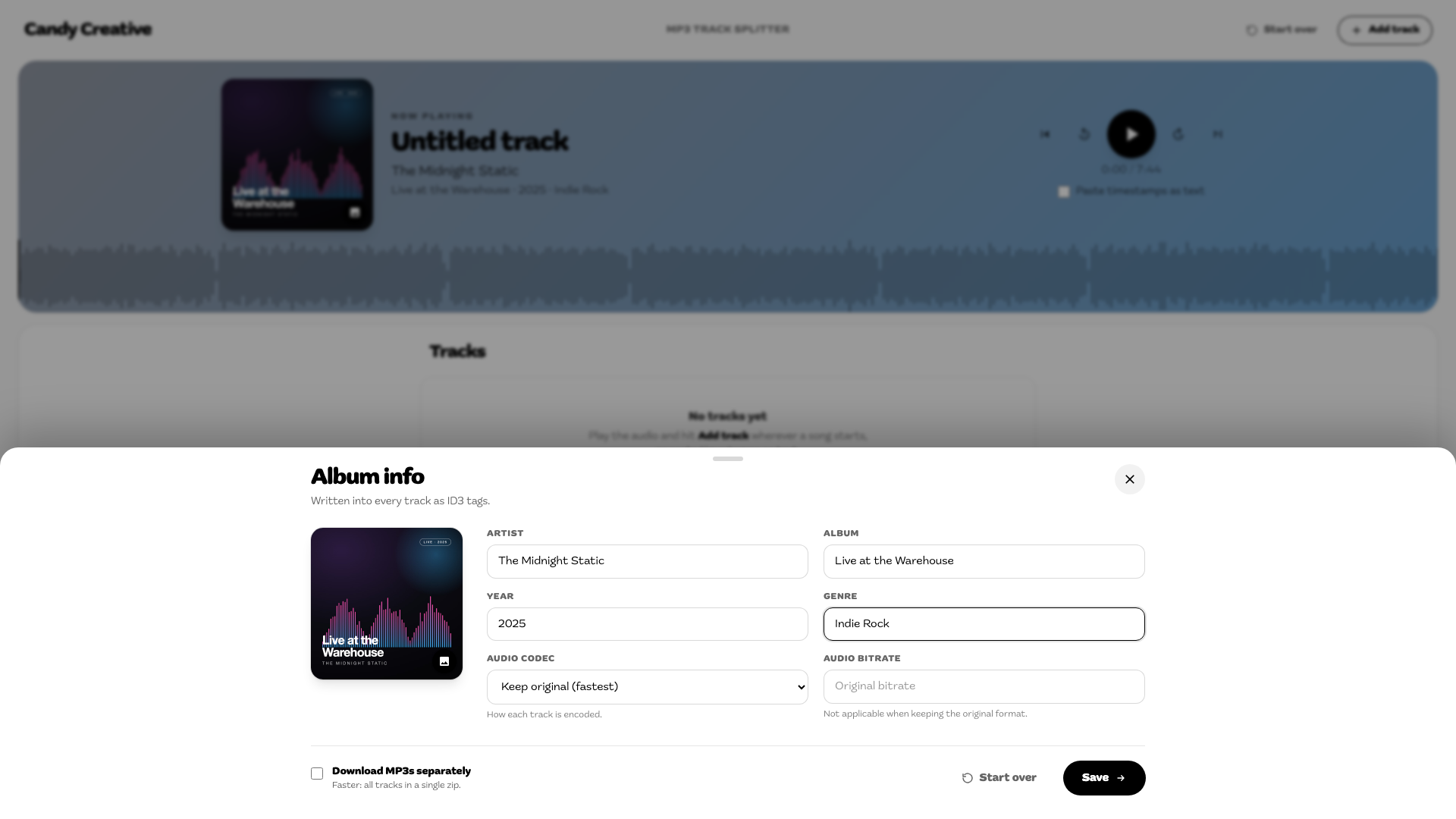
The second you pick a file, a drawer asks for artist, album, year, genre and cover art. Those get written into every track as ID3 tags, so the zip you download drops straight into iTunes, Plex or your phone with the right titles and artwork. No renaming forty files afterwards.

Your Audio, Untouched

By default we cut with ffmpeg in stream-copy mode, which means the audio is never re-encoded and nothing is lost. If you need smaller files, pick MP3, AAC or Opus and a bitrate from the same drawer. You can also ask for each track as its own download instead of a zip.

First-visit guide: play and divide as you listen

First-visit guide: play and divide as you listen

A Guide That Gets Out of the Way

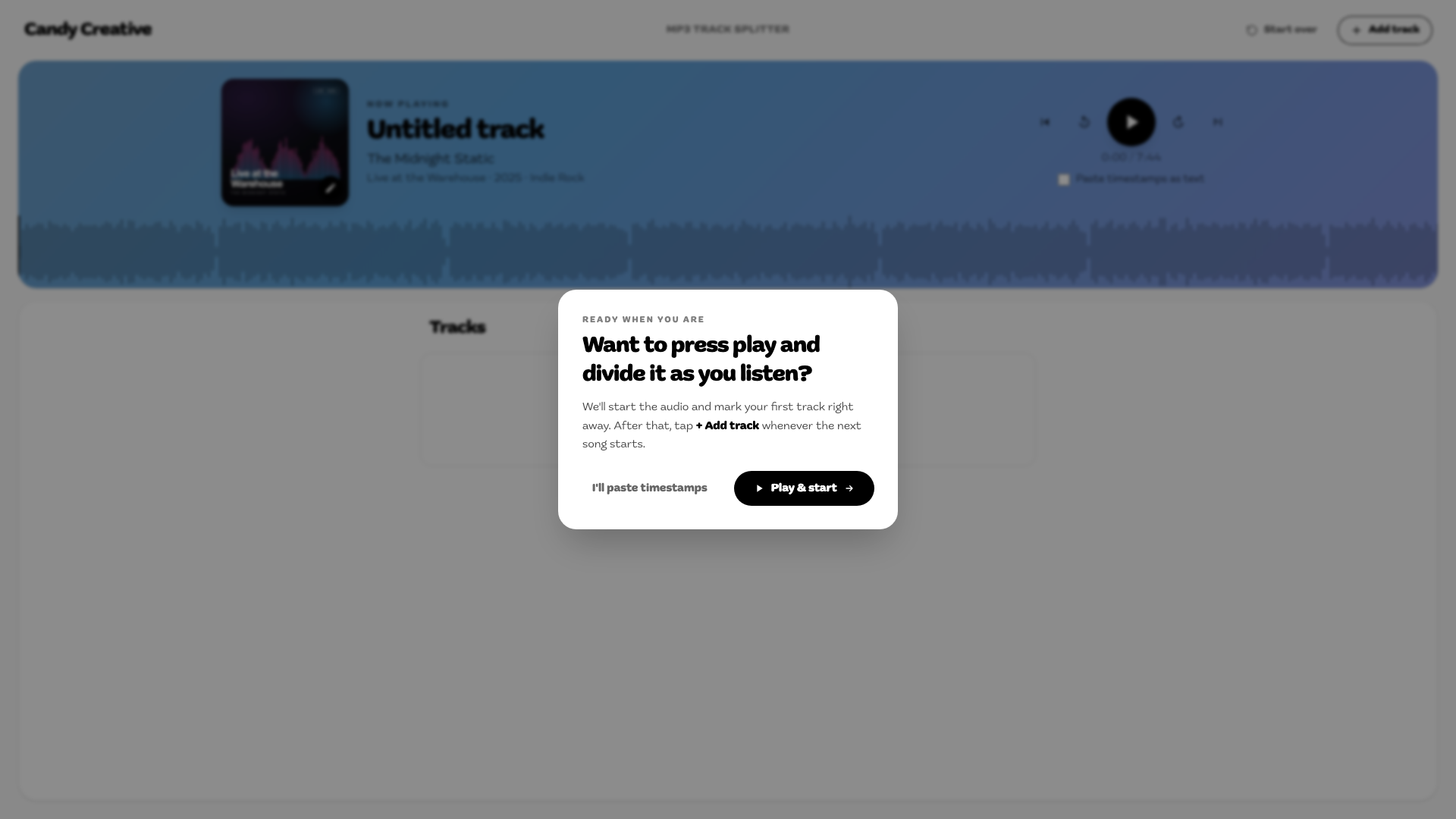
Load your first file and the tool asks one question: press play and divide it as you listen, or paste timestamps you already have? Pick play and it starts the audio, marks track one and asks what it's called. One more tip on the download button and it's gone for good, remembered per browser. Every step of that flow has an automated test behind it, written by the same AI agent that built it.

Paste timestamps text mode

Paste timestamps text mode

Paste What You Already Have

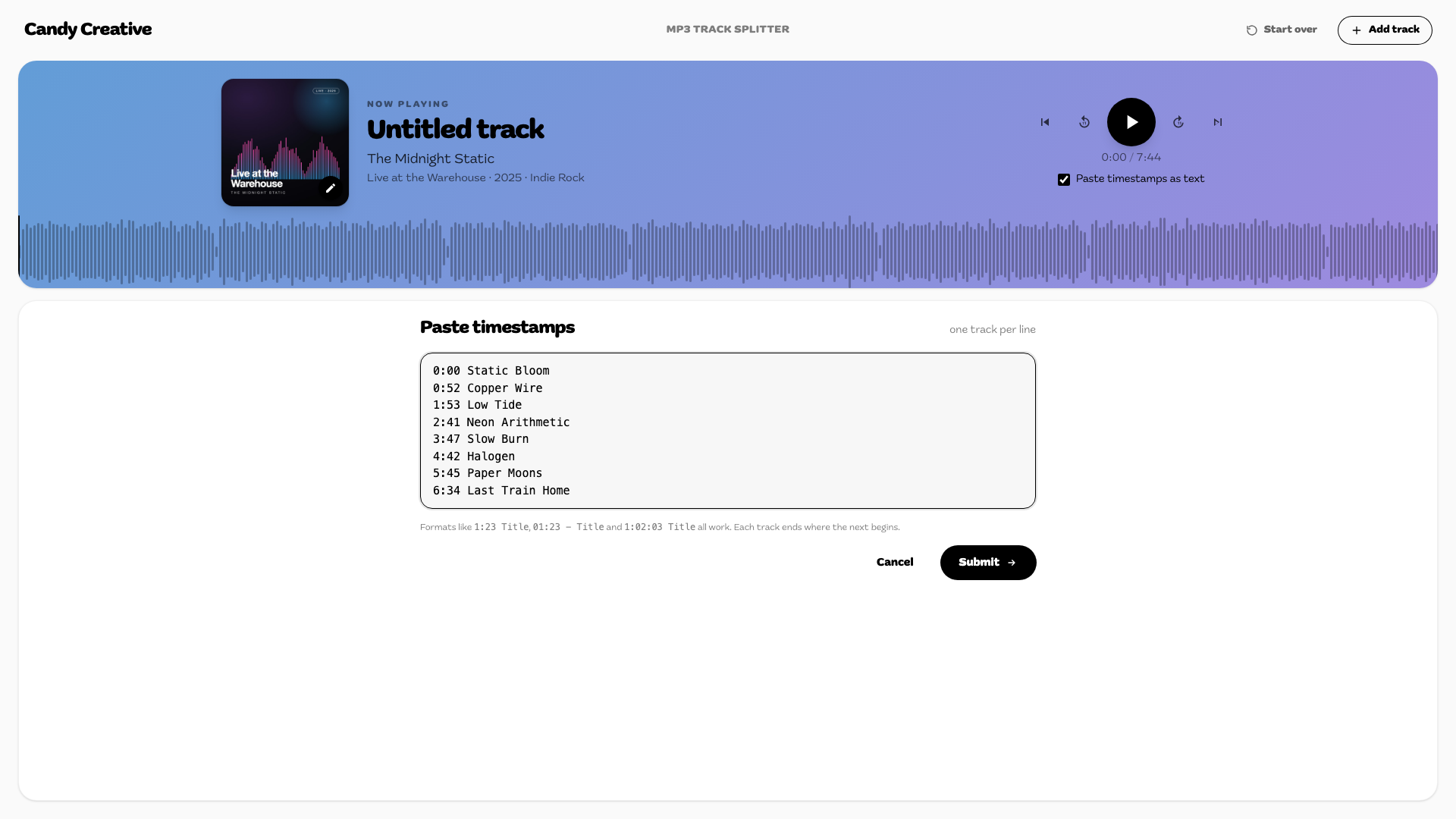
Most long MP3s already come with timestamps somewhere: a YouTube description, a Bandcamp page, a setlist someone typed up. Text mode takes them pasted as-is, one track per line. 1:23 Title, 01:23 – Title, 1:02:03 Title, they all work. Each track ends where the next one starts, so you only ever mark beginnings.

Forgiving on Purpose

The parser shrugs off dashes, stray spaces and hour-long timestamps, and the moment you submit, the tracks appear as regions on the waveform so you can spot a typo before anything gets processed. Every row stays editable afterwards. Fix a title or nudge a start time without pasting again.

Playing a track with regions on the waveform

Playing a track with regions on the waveform

Cuts You Can See

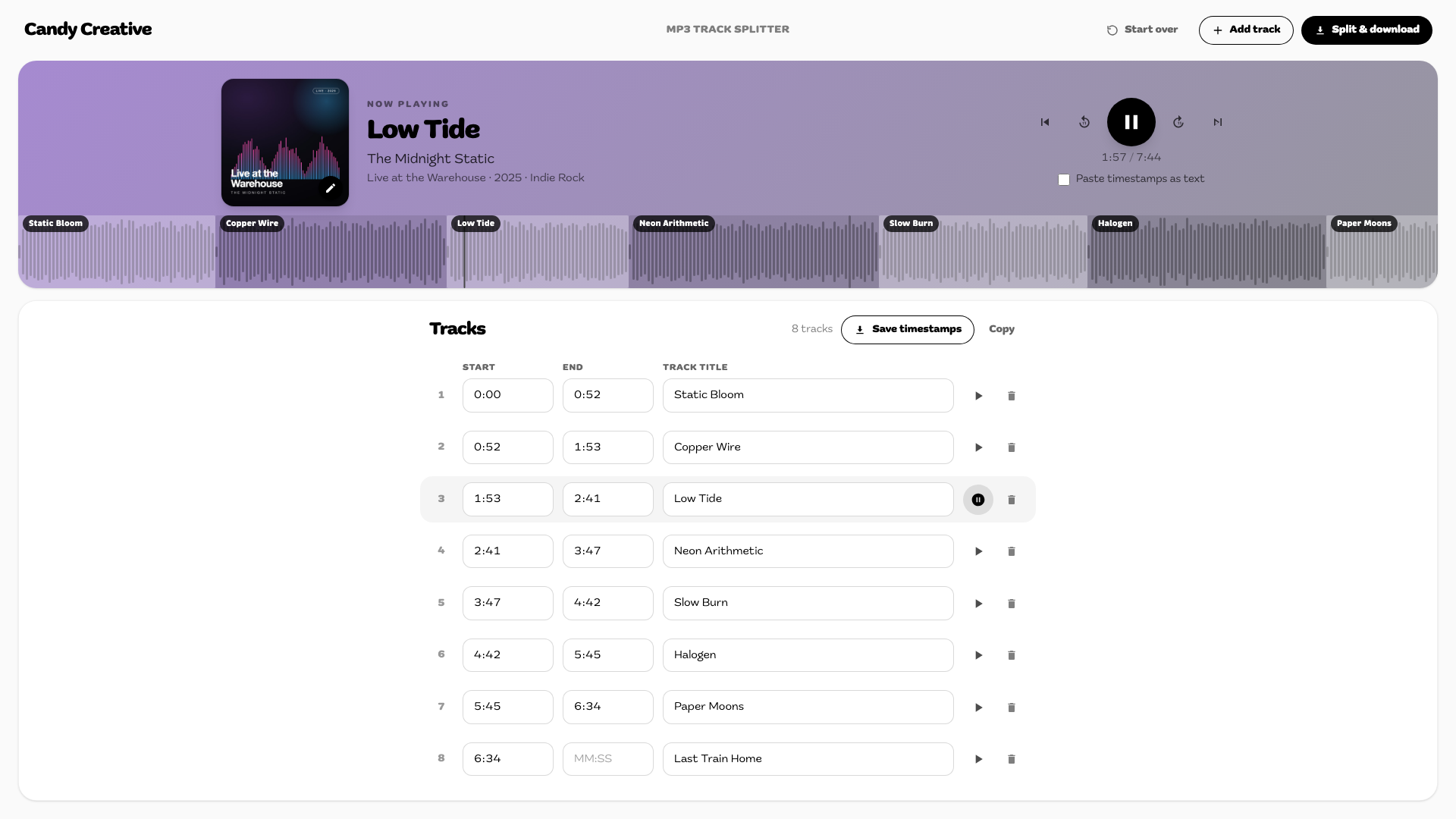
The audio is rendered as a real waveform, and every track becomes a labelled, colour-banded region. The gap between two songs is something you can see, not a number in a box. Click anywhere to jump there, scroll to zoom in when you need a precise cut. The player card even takes its colours from your cover art, so the whole screen matches the record you're splitting.

Tap Along While You Listen

Hit play, and press Add track whenever a song starts. The cut lands right at the playhead and a new row shows up in the list with its start, end and title. Each row has its own play button so you can check just that segment, and Save or Copy hands you the finished tracklist as plain text for a YouTube description or your own notes.

Live processing progress and log

Live processing progress and log

Watch It Work

Cutting and tagging takes real time on the server, so we stream it instead of hiding it. The page gets live events as your upload finishes and each track is cut, tagged and added to the archive, and shows them as a progress bar plus a console-style log. People trust a process they can watch.

When It Goes Wrong

If a file is corrupt or a timestamp lands past the end of the audio, the same stream carries a plain-English error and the page shows it inline instead of spinning forever. That bad-file path is part of the automated test suite, so it keeps working as the tool changes.

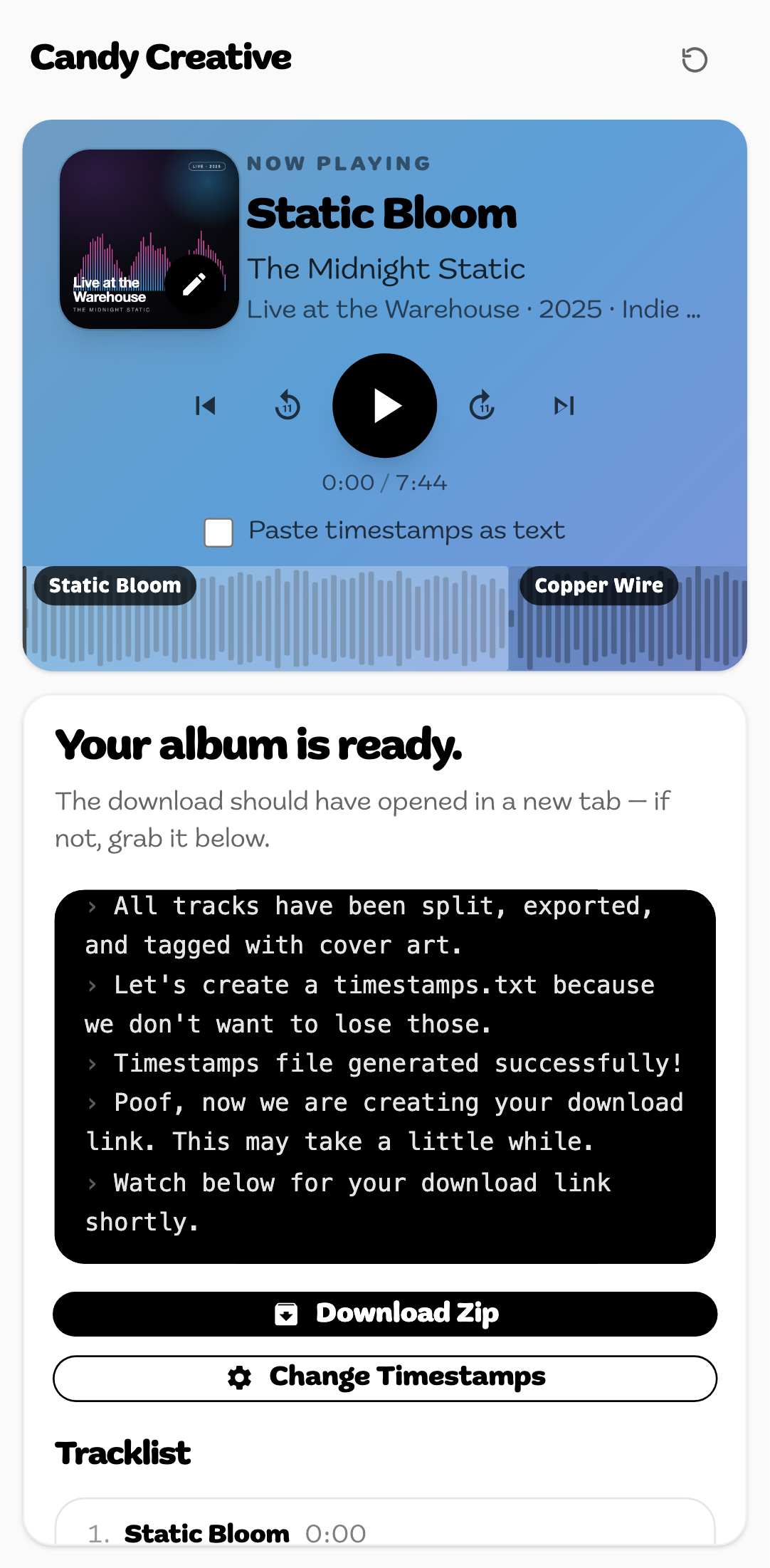
Finished album with zip download and tracklist

Finished album with zip download and tracklist

One Zip, Ready to Import

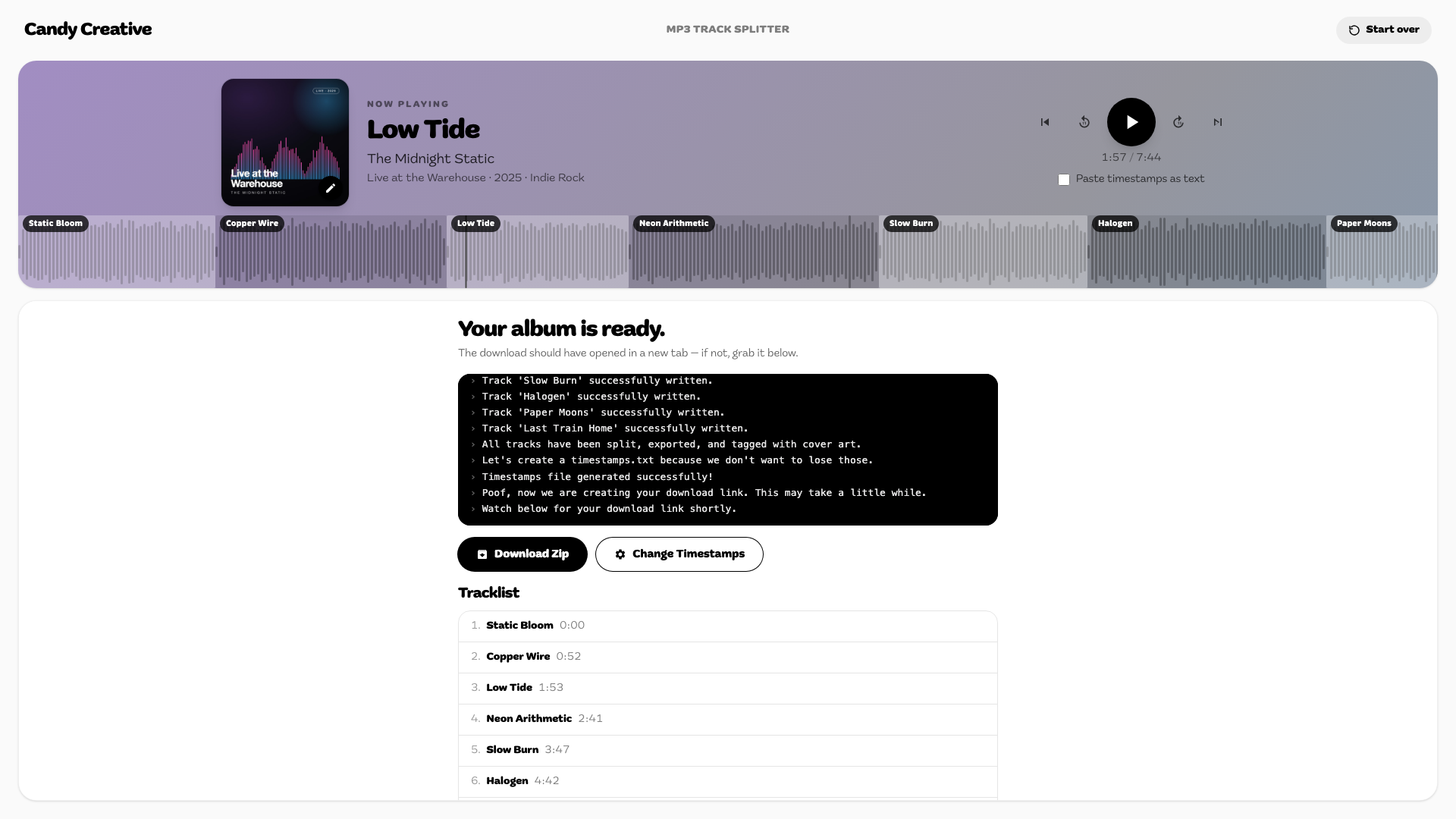
The finished archive has every track as its own tagged file plus a timestamps.txt, so your tracklist never gets lost. Albums are stored on Amazon S3 and served through a download endpoint that only hands out files this tool made, named after the album you typed.

Change Your Mind Later

Not happy with a cut? Change Timestamps drops you back in the editor with the same audio and tracks loaded. No re-upload. Your file and every edit are saved in the browser, so even closing the tab mid-session brings you back to where you were.

Mobile experience

Mobile landing screen

Mobile landing screen

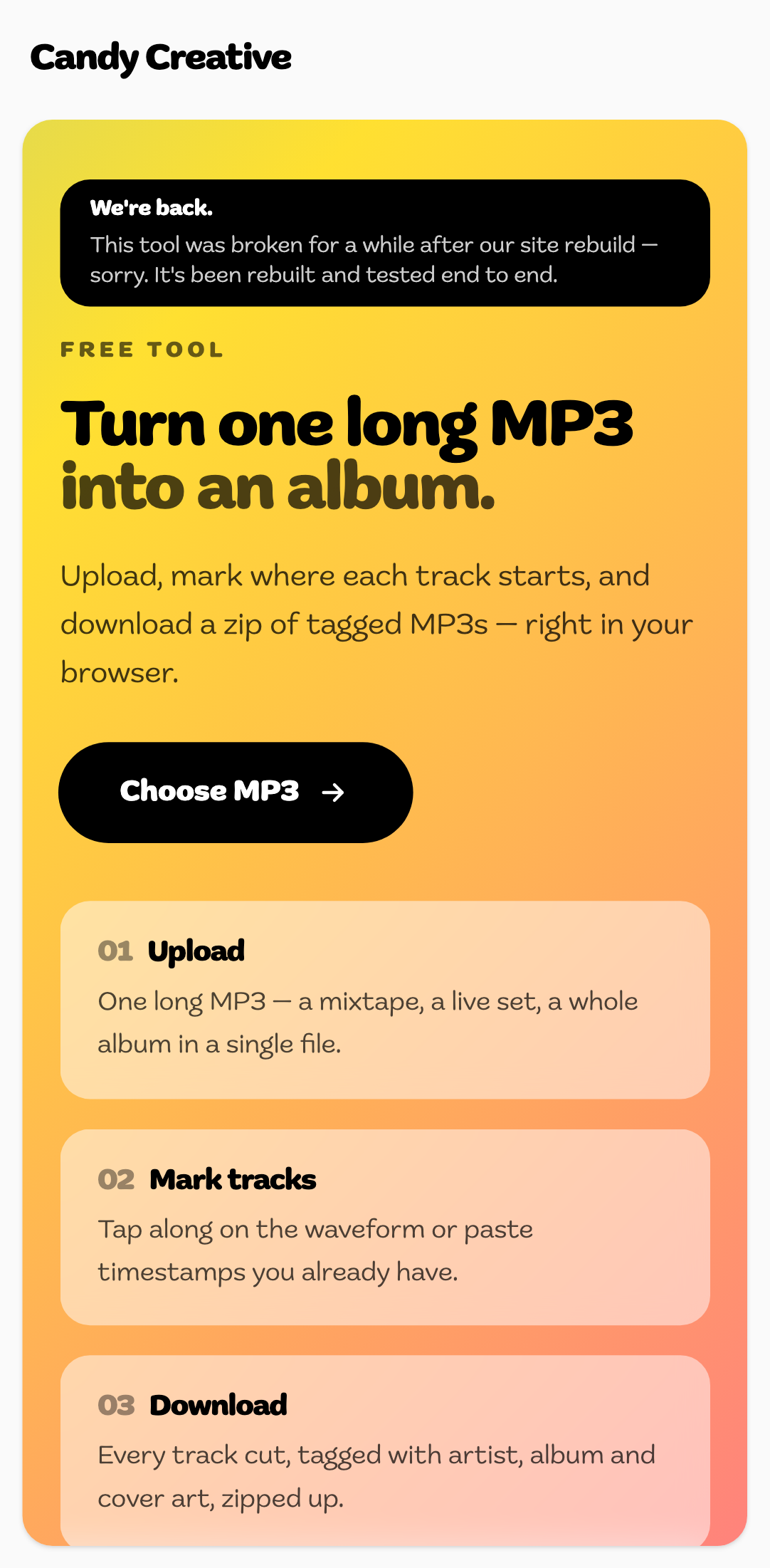
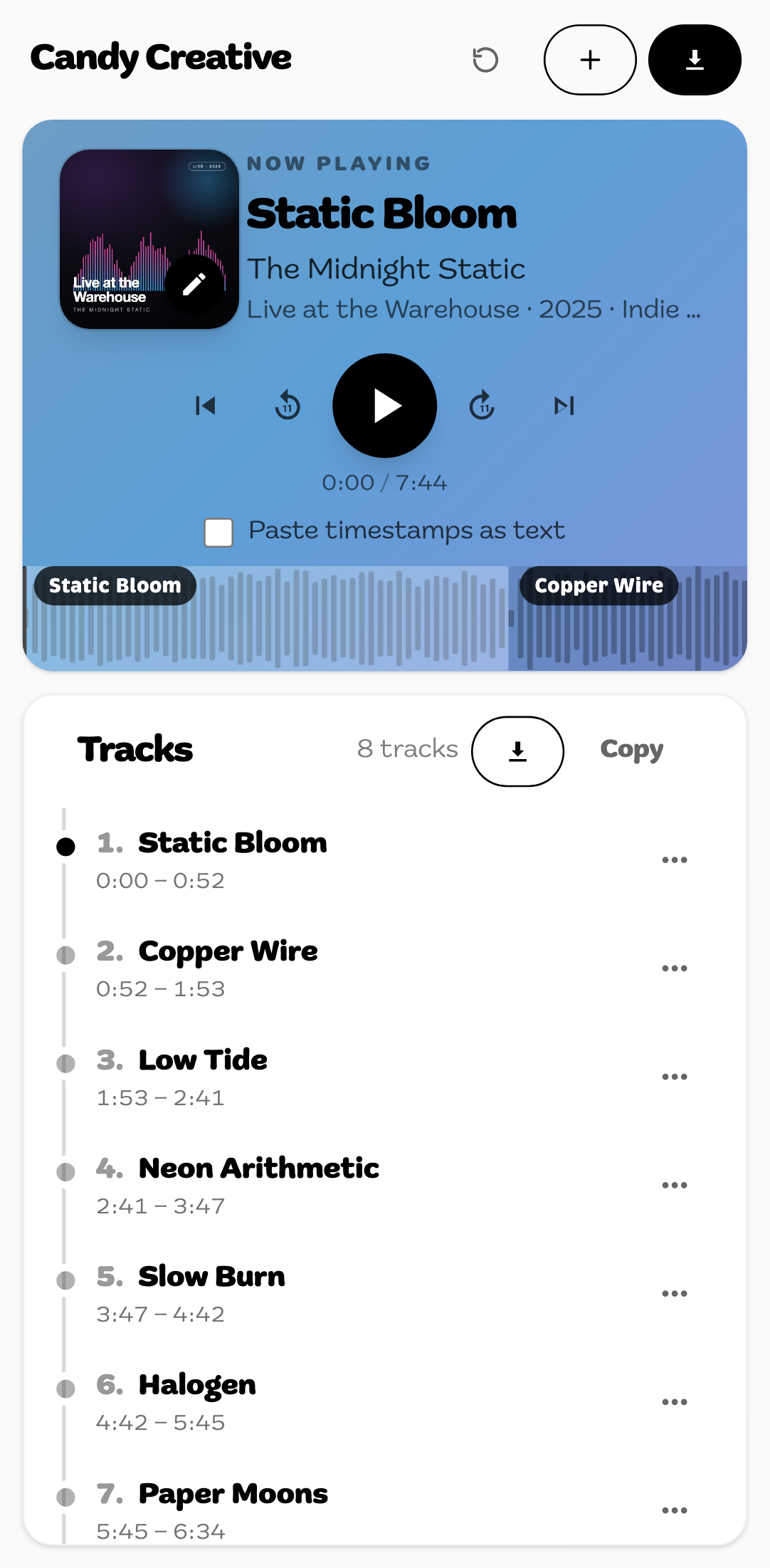
Phones Were Never an Afterthought

A lot of long MP3s get recorded and shared from a phone, so the tool had to genuinely work there, not just shrink. The toolbar collapses to icons, the player and track list stack, and when the on-screen keyboard comes up the player folds away so the field you're typing in stays on screen. We check this on Pixel 7 and iPhone SE profiles on every test run.

Mobile track editor

Mobile track editor

Mobile results screen

Mobile results screen

Next case study

Website Development

Benchmark Insurance →
We Built a Free MP3 Splitter With AI. Here's How. | Tyler Clay